Mastering the basics of using Yahoo Mail for daily email management comes down to a few core functions: sending, receiving, formatting, and organizing. It is not complicated. You send messages, you read them, and you keep your inbox from turning into a digital landfill.
Composing and Formatting Your First Email
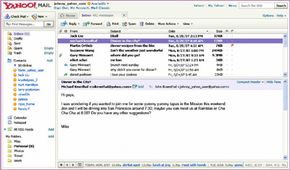
To get started, look at the upper left corner of your home page. Click the “New” button, then select “E-mail Message.” A fresh window opens up. That is where the work happens.
First, handle the recipients.
- To: Type the contact’s address here. If you are emailing a group, separate each address with a comma and a space. Do not put a comma after the last one.
- CC: Use this line for people who should receive a copy but aren’t the primary target.
- BCC: Click the small “Show BCC” text at the end of the “To” line. This lets you send a message to a list of people without exposing their addresses to each other. It is the polite way to do group sends.
- Subject: Write a few words that describe the topic. If you are emailing someone you do not know well, be specific. “Agenda for HR meeting 2-21” works. “Hello” does not. Specific subjects help avoid looking like spam.
Now write your message in the large Compose window. Below the subject line, you will see a formatting bar. You can change the typeface, size, and color. You can add links. You can even insert emoticons, those faces made of punctuation that show emotion.
Before you hit send, click “Spelling” on the bar above the “To:” field to check for typos. Once you are ready, click “Send.” You will get a confirmation that the message went out. Yahoo Mail automatically saves a copy in your Sent folder.
If you are not done, click “Save Draft.” This stores the half-written message in your Draft folder so you can finish it later. You can also click “Attach” to add files, though that process deserves its own deep dive.
Managing Incoming Mail and Inbox Controls
Yahoo Mail automatically checks for new emails every 10 minutes. You will see a number in parentheses next to your inbox icon when new mail arrives. If you want a sound alert, you can set that up in Yahoo Messenger. That is a free service, but you have to download the software and register.
Open your inbox. Messages are listed on the right side, with the most recent at the top. Unread messages appear in bold type. Above the list is a control bar. It lets you take action on each email without opening it first.
Here is what you can do:
- Open: Click the message subject or sender. The content appears in the reading pane below the list.
- Reply: Respond to just the sender or to everyone on the thread.
- Forward: Send a copy of the message, including any attachments, to someone else.
- Spam: Move the message to your unwanted mail folder.
- Move: Save the message to a custom folder you have created.
- Print: Send the message to your printer.
- Delete: Move the message to your Trash folder.
If you delete something by accident, you can usually retrieve it from the Trash, provided you have not emptied that folder yet.
Once you have handled the basics, the next step is looking at attachments, searching your archives, and accessing your mail remotely.