



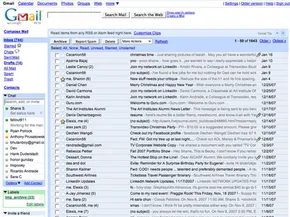
It started with a gigabyte of space. Back in 2004, that number seemed absurd. Most providers gave you a few megabytes before choking on your attachments. Google didn’t just offer a gigabyte; they offered a revolution. They bundled it with full-text search and message grouping.
Suddenly, email wasn’t just a digital mailbox. It was a database you could query.
By October 2007, the numbers didn’t lie. Gmail had climbed to become the third-largest free email service globally, boasting 87 million users according to comScore Media Metrix. It wasn’t leading the pack yet. Yahoo Mail still reigned supreme with roughly 262 million users. MSN Hotmail (later Windows Live Mail) sat comfortably in second place with about 256 million users. But the momentum was shifting.
The Origins of Open Access
Here’s the thing most people don’t realize: Gmail didn’t start as a public product. It began as an internal tool at Google Inc. The search giant used it to communicate with itself. In April 2004, access was strictly invite-only. You had to know someone who knew someone. It created scarcity. It created hype.
That strategy held for three years. Then, in February 2007, Google opened the doors. Everyone could join.
The shift from exclusive beta to public utility changed the game. AOL and Yahoo had been offering web-based mail since the 1990s. They were the old guard. Gmail was the newcomer with deeper pockets and faster servers.
Features That Built the Platform
After going public, Google didn’t rest. They poured engineering resources into expanding the feature set. The goal wasn’t just to send messages. It was to manage the chaos of digital communication.
Key innovations included:
– AIM Integration : Users could group chat directly with AOL Instant Messenger contacts.
– Mobile Access : Gmail for mobile devices, a rarity at the time.
– POP3/IMAP Support : The ability to pull email from other services like AOL or Yahoo Mail into one inbox.
– Security : Built-in virus scanning and aggressive spam controls.
– Usability : Keyboard shortcuts and other efficiency tweaks.
Technical specs mattered too. The service supported messaging in 40 languages and allowed attachments up to 20 megabytes. For a free service, that was generous. For an enterprise competitor, it was a threat.
We’re going to break down exactly how these features work. First, let’s look at the barrier to entry. How easy is it to set up an account and actually sign in?
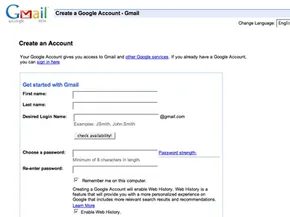

Creating a Gmail account is the gateway to the entire Google ecosystem. It starts with a simple signup process, but the configuration options are where you actually make the service yours. If you’re starting from scratch, navigate to Google and look for the “Sign up for Gmail” link in the lower right corner.
If you already have a Google account, don’t start over. Click “Sign In Here” on the next screen. If you are brand new to Google, you’ll need to provide your name, country, and a chosen username and password. You will also need to select a security question. This is your safety net for when you inevitably forget your password. Once you accept the terms of service and privacy policy, your account is live.
Signing in is straightforward. Go to Google from your browser to hit the sign-in page. Enter your username (which includes the “@gmail.com” suffix) and your password on the right side, then click “Sign In.” You’ll land directly on your mail home page.
There is a checkbox below the sign-in area to “remain signed in.” Use it on your personal devices. Do not check it on shared or public computers. Security matters.
Losing access to your account happens. If you forget your ID or password, click “I cannot access my account” below the Sign In button. Answer the verification questions, and Google will email you instructions to regain access.
When you are done, locate “Sign Out” in the far upper right of the screen. Simple.
Personalizing Your Gmail Experience
Once you are logged in, the real customization begins. Click “Settings” in the upper right corner, then select “General.” This is where you tailor the interface.
You can change the language to match your preference. You can also add a personal touch by uploading a profile picture. But the most practical feature here is the signature. You can craft a block of text that appears at the bottom of every email you send. Include your name, address, and phone number so recipients always have your contact info.
Another essential tool is the vacation responder. Set it up to send an automatic reply to anyone emailing you while you are away. It saves you from explaining your absence over and over again.
After making any changes, you must click “Save Changes.” The settings won’t update until you do.
With your account configured, you are ready to handle the core workflow. The next step is mastering the basics of sending and receiving emails.
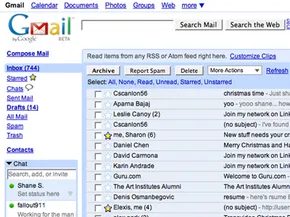
Email feels simple until you actually need to do something with it. Sending a message is the obvious start. Receiving one follows naturally. But once you have the hang of that, things get interesting. You will want to attach files. You will want to archive clutter. You will want to use Google’s search engine to dig through years of correspondence.
Sending a Message
Start with the big blue button in the top-left corner labeled “Compose Mail.” It opens a new window. Type the recipient’s address in the “To” field. If you have saved contacts, Gmail helps. Type the first couple of letters. The auto-complete list drops down. Pick the name. Done.
Sometimes you need to loop others in. Click “Add Cc” for people who should see the thread but don’t need to reply. Use “Bcc” if you want to hide the recipients’ identities completely. Their names stay out of everyone else’s view.
Next up is the subject line. Keep it brief. Then write the body in the large text box. The toolbar above the box handles formatting. Change fonts. Adjust colors. Check spelling before you hit send. You can also drop in links. Or attach files.
Gmail is proactive about saving your work. It creates a draft every few minutes as you type. If the message goes out successfully, you get a confirmation banner. If you change your mind and delete the draft from the folder, it’s gone. No trace left behind.
Receiving a Message and Responding
Look at the number next to your Inbox label. That is your tally. Gmail checks for new mail every two minutes. The counter updates automatically.
Gmail groups messages into conversations. The original email sits at the bottom. Replies stack on top. The newest message is always visible first. Click “Expand All” if you want to read the entire history in one view.
Printing is straightforward. Click the down arrow next to “Reply.” Select “Print” for the single visible message. Or choose “Print all” to capture the whole conversation thread.
Forwarding works similarly. Open the email. Click “Forward” below the content. Add new addresses. Add your own notes if you feel like it. Click “Send.” Simple.
Using Attachments
Files make email useful. Documents. Photos. Video clips. Adding them is easy.
Click “Attach a file” under the subject line. Browse your computer. Find the file. Click “Open.” You can attach multiple files by clicking “Attach another file.” If you attach the wrong thing, click “Remove.”
Opening attachments varies by format. Click “Download” at the bottom of the message. Then choose “Open” or “Save.” Want to preview without downloading? Click “View as HTML” after opening the message.
There is a nice integration for Microsoft files. Excel spreadsheets open as Google Sheets. Word documents open as Google Docs. You can edit them directly in the browser.
Message Archives
Your inbox is a to-do list, not a filing cabinet. Archiving moves messages out of the inbox and into “All Mail.” This keeps your view clean.
You can still find archived emails later. Use the search tool. Type keywords. Filter by sender or date. The search index covers everything, archived or not.
To archive a message, check the box next to the sender’s name. Click the “Archive” button in the toolbar. The message disappears from your primary view. It does not delete. It just hides.
There is one catch. If someone replies to an archived message, the entire conversation pops back into your inbox. It assumes you want to engage with the new reply.
Gmail has plenty of features beyond these basics. Security filters. Notifiers. Retrieving mail from other services. These are the next steps in mastering the platform.
Gmail isn’t just a storage bin for messages anymore. It’s become a hub that tries to predict what you need before you ask. Beyond the basic send-and-receive loop, there are specific tools designed to reduce friction. We’re looking at how features like the desktop notifier, mail fetching, and contact grouping change the daily workflow. And yes, there’s the security layer that keeps things from falling apart.
Gmail Notifier
You don’t always want your browser tab open to know you’ve been pinged. The Gmail Notifier solves that. It’s a small app that sits in your system tray or dock. It checks for new mail every two minutes. Silent by default, but loud when it needs to be.
You can customize the alert sound. More importantly, you can see a snippet of text from up to 30 incoming messages without actually clicking into the web interface. It’s a quick scan. You see the sender, you see the preview, and you decide.
The OS requirements are specific, so check yours first. Windows users need 2000, XP, or newer. It’s surprisingly old-school compatibility for a modern service. Mac users are on OS X 10.3.8 or later. It also hooks into Google Calendar, so you get alerts for upcoming events too.
Mail Fetcher
Why log into three different inboxes when you can pull them all into one? Mail Fetcher lets you aggregate messages from up to five other accounts. Yahoo. AOL. Your old work email. They all show up in Gmail.
It works by checking those accounts regularly and downloading the messages. But there’s a catch. The external accounts must have POP (Post Office Protocol) enabled. POP is an older standard, but it’s the key here. It allows Gmail to download messages from those servers. This means you can access archived mail even if the source server has syncing issues, effectively letting you read without an active connection to the original provider.
Contact Groups
Sending the same update to ten people shouldn’t require typing ten addresses. Contact groups fix that friction. You build them in the “Contacts” tab on the left. Click “New Group” in the top left corner. Name it. Hit OK.
Then you populate it. Select the contacts from your list, open the Groups menu, and under “Add to…,” pick the group you just made. If you miss someone later, you can type their name or email in the “Add this to group” box below the main contact list.
When it’s time to write, go to Compose. In the “To:” field, start typing the group’s name. Auto-complete handles the rest. You hit send. Done.
Security and Spam
Gmail assumes the internet is hostile. Every attachment you send gets a virus scan. Every attachment you receive gets scanned twice. Once when it lands on the server. Again when you open the message. It’s redundant, but it’s also reassuring.
Questionable emails don’t just get flagged; they get moved. They go straight to the spam folder. If you find a false positive, or just want to clean up your inbox, you select the message and click “Report Spam.”
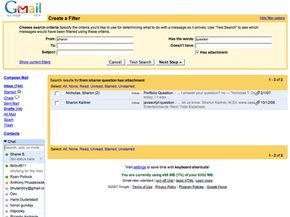
For repeat offenders, filters are your weapon of choice. Click “Create a filter” under the search bar. Input the criteria—usually the sender’s address or domain. Click “Next Step.” Check the box that says “Delete it” or “Mark as read.” Create the filter. Now that email disappears automatically before you even see it.
Parental Controls
Kids under 13 can’t just sign up. They need parental permission. It’s a legal boundary, not just a suggestion. But parents can do more than just say yes or no. You can set up mail filters to block unwanted content from reaching your child’s inbox entirely.
Gmail’s advice on digital hygiene for younger users is pretty standard, but worth following:
- Keep the computer in a public area of the house. Visibility matters.
- Use parental control software or browser settings to block inappropriate sites.
- Talk to them about email etiquette. It’s not just about spam; it’s about behavior.
- Warn them against downloading attachments from unknown senders. If they’re unsure, they should ask an adult.
- Tell them never to send identifiable photos or personal info over email or chat, especially to strangers.
This is just the surface. The platform is constantly shifting, looking at new ways to handle voice mail, mobile syncing, and even instant messaging with AIM users.
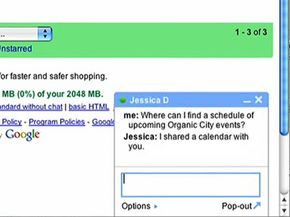
Voice and mobile integration
Gmail isn’t just a desktop inbox anymore. It evolved into a hub for real-time communication. You can chat with friends, join group conversations, or even instant message AIM contacts directly from the interface. The service also supports voice calls and mobile access across devices like BlackBerry and iPhone.
How Google Talk voicemail works
If you have Google Talk signed in alongside your chat features, voice calling becomes available. A “Call” button appears next to your contacts’ profiles. If the button is gray, they are offline. If it is active, the person is available to talk.
Contacts can also leave you voice messages. These arrive as special items in your inbox. The subject line reads “Voicemail from [Contact Name] (x seconds).” A telephone icon marks them. To listen, click “Play” in the conversation view.
Gmail chat setup and limitations
Gmail chat mirrors Google Talk. You can start one-on-one chats or group sessions. Look for a colored ball next to a contact’s name. That indicates they are online. Go to “Chat” in the sidebar. Click a name to open the window. Type your message and press “Enter.”
You can search for a contact by name at the top of the Chat pane. Alternatively, find them in your Contacts list and click the “Chat” link. Close the window with the “x” in the top right corner.
Note that chat functionality requires specific browser versions: Internet Explorer 6.0+ or Firefox 1.0+. It does not work in Safari or other browsers.
Chats are saved. You can search through them later.
Setting up group chats
Group chat lets you talk to unlimited contacts at once. The setup is straightforward.
- Start a chat with one person from your Contacts list.
- Click “Options” at the bottom left of the chat window.
- Select “Group Chat.”
- Enter the names of people to add in the “Add a person to this chat” field.
To end the session, click the “x” in the corner. The chat persists until everyone has left the window.
Connecting to AIM accounts
Gmail chat integrates with AIM. You can sign into your AIM account directly from Gmail. Your AIM buddies appear in your contact list. You can search for them just like anyone else.
Click a name on your chat list. Type a message. Send it. The process is identical to chatting with another Gmail user.
Accessing Gmail on mobile devices
Gmail for Mobile allows access via a smartphone’s web browser or a downloadable application. Both methods sync automatically. Any action you take on your phone reflects in your regular Gmail account instantly.
The browser version mimics the desktop interface. It works on most smartphones. However, it uses more data and can be slower.
The downloadable app is faster. It consumes less data. To get it, point your phone’s browser to Gmail applications. The app keeps your actions in sync with your main account.
Both versions offer core features like search and conversation view.
What is the difference between email and Gmail?
Email is the method of electronic communication. Gmail is the service provided by Google. You use Gmail to send and receive email.
How do I use Gmail for the first time?
You need to create an account. Go to the Gmail website. Click “Create an account.” Enter your name. Choose a username. Create a password. Enter your birthday and gender. Then you can start using Gmail.
How do you use Gmail?
Gmail is a free email service. You access it by logging in with a Google account on the website. Or you use the Gmail app for Android or iOS. The service offers storage, labeling, and archiving. It also supports multiple email accounts.
Related Resources
- How E-mail Works
- How Smartphones Work
- How a BlackBerry Works
- How Yahoo Mail Works
- How AOL Mail Works
- How Windows Live E-mail Works
More Great Links
- Gmail Help
- Gmail Blog
- Gmail for Mobile


