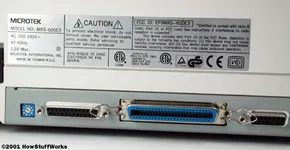
Scanning is just the first half of the equation. You have the image on the platen, but if you can’t get that data onto your hard drive, the physical act of scanning is useless. The bridge between the scanner and your computer relies on three main connection standards, and choosing the wrong one can bottleneck your workflow before you even start.
The oldest and slowest method is Parallel. It uses the parallel port on your machine. It’s reliable in a legacy sense, but it is painfully slow for modern digital workflows. If you are still using this, you are waiting a lot.
Then there is Small Computer System Interface, or SCSI. This was the professional standard for a long time. It requires a dedicated SCSI card inside your computer’s expansion slots or a standard SCSI controller. It offers stability and speed, but the setup is fiddly. You need that specific hardware, and daisy-chaining devices can be a headache.
Universal Serial Bus (USB) changed the game. It combined speed, ease of use, and affordability into a single package. You plug it in, it works, and it doesn’t require opening your computer case to install a card. For most home and office users, USB is the sweet spot.
FireWire usually lives on the high-end scanners. It is faster than both USB and SCSI. If you are scanning high-resolution images or large format documents, FireWire handles the data throughput better. It is ideal for professional workflows where time is money.
Regardless of how you plug it in, you need software. Specifically, you need a driver. The driver is the translator. Most scanners speak a common language called TWAIN. The TWAIN driver acts as an interpreter between the application on your computer and the scanner hardware.
This abstraction layer is important. Your photo editor doesn’t need to know the intricate mechanical details of the scanner’s motor or lamp. It just needs to speak TWAIN. For example, Adobe Photoshop supports the TWAIN standard. You can choose to acquire an image directly from within the app. The driver handles the handshake. The app handles the pixels.
Most scanners come with more than just the driver. You will typically get a scanning utility and an image editing application. Many bundles include OCR software as well.
OCR, or Optical Character Recognition, allows you to scan physical words and convert them into editable computer text. It works by using an averaging process. It looks at the shape of the character, matches it to the correct letter or number, and generates text you can actually edit.
The market for scanners is fragmented. You can find a decent scanner with good software for less than $200. Or you can spend less than $1,000 for a fantastic unit with incredible software. The technology has matured. You get exactly what you need based on your budget.
TWAIN itself is a bit of a joke in the industry. It is not an acronym. It comes from the phrase “Never the twain shall meet,” referring to the driver acting as the go-between for the software and the scanner. Computer people love acronyms, so they retrofitted it to mean Technology Without An Interesting Name.
This setup matters because it determines how quickly you can digitize your world. A slow parallel port or a missing driver turns a simple scan into a technical troubleshooting session. With USB and TWAIN, the barrier to entry is low. You scan. You get the file. You move on.
The hardware is cheap. The software is free or bundled. The real cost is the time you spend deciding which interface suits your resolution needs.