



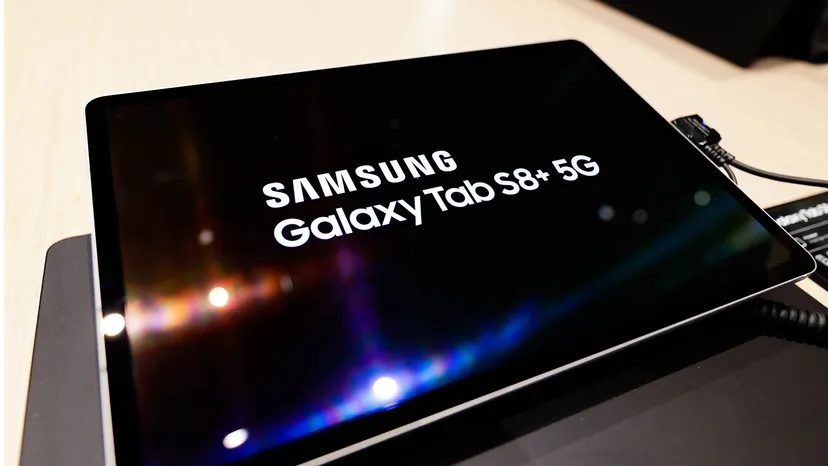
It started with a clunky phone. The T-Mobile G1 hit shelves in October 2008 as the first major device running Android. Fast forward four years, and Android had seized the largest mobile operating system market share. It still holds that crown today. Sure, phones dominate those numbers. Tablets are a different story, with Apple’s iPadOS leading the pack there. Android is catching up, though.
Every software giant has its own weird way of naming its updates. It’s enough to make your head spin. Microsoft went through a few identity crises. Windows 1.0 arrived in 1985. Then came Windows 95, 98, and ME. Microsoft abandoned numbers for a while, giving us Windows XP and Vista. In 2009, they returned to digits with Windows 7. They’ve stuck with that simple numbering through Windows 11. For now.
Apple did the same thing. They used plain numbers for early Mac OS releases. Then Steve Jobs returned from NeXT and brought Nextstep with him. It became Mac OS X. The “X” stood for ten. After that, Apple got playful. They used code names. First, big cats. Mountain Lion. Snow Leopard. Then, in version 10.9, they switched to California geography. Mavericks. Catalina. Big Sur marked the start of macOS 11, but the location theme stayed. iOS, on the other hand, never stopped using straight numbers.
Linux distributions are even more eccentric. The open-source platform relies on different organizations for its builds, and they love alphabetical code names. Ubuntu uses animals. Jammy Jellyfish. Bionic Beaver. Linux Mint uses women’s names. Debbie. Elsie. Not every distro follows this, but it’s a strong tradition.
Android sat right in the middle of this chaos. It uses the Linux kernel but decided on sweets. We got Cupcake. Donut. Eclair. Froyo. Gingerbread. Honeycomb. Ice Cream Sandwich. Jelly Bean. It was sugary and sweet. Then, in late 2019, Google pulled the plug. Version 9 was called Pie. That was the last dessert. The next version was just Android 10. Why does every tech company seem obsessed with the number ten? Who knows. In 2022, Google even removed the candy statues from their campus. The sweet era is over.
Backing Up Your Data Before You Upgrade
Before we talk about upgrading, stop. Breathe. Back up your tablet.
Don’t skip this step. You need to use Android’s built-in tools to save your entire device. On most Android tablets, the path is simple. Open the Settings app. Look for the Backup option under the Google menu.
If you’re on a different device, the controls might be hiding elsewhere in your settings. Some manufacturers use their own cloud storage instead of Google’s. That’s fine. As long as your data is off the device, you’re good. Cloud backup is essential before any major software update. Things go wrong. Updates fail. Devices bricking is a real risk. If you have to reset your tablet, you’ll want your photos and contacts safe.
Upgrading Your Android OS by the Book
Once you’ve secured your data, you’re ready to move. Upgrading your Android software isn’t just about getting the latest features. It’s about security, stability, and keeping your apps running smoothly.


Android is open source, which sounds like freedom until you pick up the device. Manufacturers treat the code like clay. Samsung skins it. Amazon strips it down to a store kiosk. The result? Two tablets running the exact same base version of Android can feel like they’re running two different worlds.
They tweak the interface. They hook the OS to specific cellular modems or proprietary camera stacks. It’s messy. The Android community debates this constantly, but the reality is simple: Google releases a bare-bones platform. By the time it hits your shelf, it’s heavily proprietary.
Finding Your Current OS Version
You need to know what you’re running before you try to change it. Open the Settings app. Navigate to System Update. It will display the current Android version. Simple.
The Safe Route: Manufacturer Updates
If you want stability, stick to the official channels. There are three main ways to get the update.
- Settings Menu: Tap Systems and then Systems Update. The tablet checks with the manufacturer. If an update exists, it downloads and installs it automatically.
- Manufacturer Support Site: Go to the web browser on your tablet. Visit the technical support page for your specific model. Reputable brands like Lenovo, Samsung, or Amazon host drivers and OS images there. You can even update other system drivers manually if needed.
- Computer Connection: Connect your tablet to a PC via USB. Launch the manufacturer’s proprietary software (like Samsung DeX or Amazon’s device manager). You can often perform a fresh OS install from scratch this way.
This is the smart path. It keeps your warranty intact. It prevents you from bricking your device.
The Root of the Matter
Official updates are conservative. Manufacturers move slowly. They test. They wait. If your hardware is older, they might just stop supporting it. That’s when users get restless.
You’ve heard of jailbreaking iPhones. On Android, it’s called rooting.
Rooting means unlocking the manufacturer’s firmware. You gain control. You can install custom operating systems. You can sideload apps that the stock Android environment blocks. Tutorials exist online. Tools like Kingo Root or iRoot can help.
But don’t treat this like a routine software patch.
The Risks of Rooting
Rooting voids your warranty. Immediately. If you mess up the installation, your tablet can become inoperable. It can develop security holes that expose your data.
Hardware matters. Google sets minimum requirements for each Android release. Older tablets often lack the processing power or memory to handle a newer OS smoothly. If you force a heavy OS onto weak hardware, performance tanks. We’re talking excruciatingly slow response times. Or worse, a “brick.” A bricked tablet is a paperweight.
If this is your only tablet, think twice. Rooting is for advanced users who understand the risks. Even then, success isn’t guaranteed.
Where to Find Guides
Need direction? The folks at Android Central maintain a running list of rooting instructions for various tablets and smartphones. You can find their guides at their root section. Check forums for your specific device model, too. See if others have successfully rooted the same hardware with the same Android version.
Android Upgrade FAQ
How do I upgrade Android on a tablet?
Three methods work. First, use the Settings menu to check for updates. Your device contacts the manufacturer’s servers. Second, visit the manufacturer’s support site via your tablet’s browser. Download drivers or OS images directly. Third, connect to a computer. Use the manufacturer’s desktop software to flash the OS.
Is it possible to jailbreak my Android phone?
Most Android devices can be rooted using tools like Kingo Root, iRoot, or Kingroot. Proceed with caution. Rooting voids your warranty and carries security risks.
Why can’t I update my Android version?
Check your internet connection. Ensure you have enough storage space. Verify your battery level. Some devices are simply incompatible with the latest update due to hardware limitations. If the manufacturer hasn’t pushed an update for your specific model, you may be stuck on an older version.


