You stare at it for hours. You squint at it in the dark. You buy it on impulse. But ask most people what “dot pitch” actually means, and you get a blank stare. We interact with these glass rectangles constantly, yet the technical jargon governing them remains a mystery. Why does your screen flicker? What is the real difference between an old CRT and a modern LCD? How much energy are you wasting?
Most users treat monitors as black boxes. They turn them on. They work. They don’t ask questions. That changes when you’re in the market for a new display. Or when you’re trying to fix a weird visual glitch.
This guide cuts through the noise. We are tackling the core definitions that define your visual experience. Not with academic dryness, but with enough detail to help you understand what you own and what you should buy next.
The Shape of Your Screen
Let’s start with the basics. Aspect ratio. It’s just the proportional relationship between the width and the height of your display.
For decades, we lived in the land of 4:3. Square-ish. Good for old TV shows. Bad for modern web browsing. Then came widescreen. 16:9 became the standard. Why? Because movies are widescreen. Because productivity on a wide screen feels more natural for spreadsheets and side-by-side windows.
Knowing your aspect ratio matters more than you think. It dictates how content fits. Stretch a 4:3 image on a 16:9 monitor, and you get black bars. Squeeze a 16:9 video into a 4:3 box, and everything looks distorted. It’s geometry. Simple.
The Pulse of the Display
Then there’s refresh rate. This number tells you how many times per second the screen updates its image. Measured in Hertz (Hz).
30Hz? Choppy. Feels like a slideshow.
60Hz? The old standard. Fine for typing. Bad for gaming.
144Hz and higher? Smooth. Fluid. Essential for competitive gamers.
But it’s not just for gamers. Even scrolling through a webpage feels lighter on a 120Hz screen. Your eyes don’t like judder. The higher the refresh rate, the smoother the motion. It’s a tangible difference. Once you go high, going back is painful.
Pixels and Sharpness
Dot pitch is a term that survived the transition from CRT to LCD, but its meaning shifted. In the CRT days, dot pitch measured the distance between phosphor dots on the screen. Smaller number? Sharper image.
On an LCD, the concept translates to pixel density. It’s about how close the pixels are packed together. High pixel density means you can’t see individual pixels from a normal viewing distance. Retina displays are just marketing speak for “so many pixels per inch your eye can’t resolve them.”
Why does this matter? Text clarity. If your dot pitch is too large, text looks jagged. Aliased. It strains your eyes. You blink more. You get headaches.
CRT vs. LCD: The Great Divide
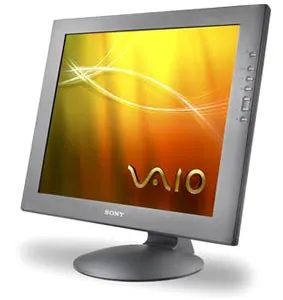
You might not have seen a CRT in years, but understanding the difference helps explain why your current screen looks the way it does.