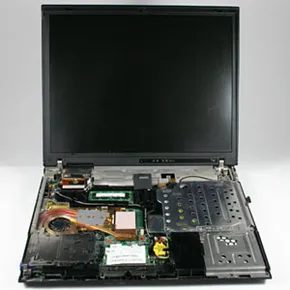
Tearing things apart is a hobby for some. You see the outer shell and imagine the gears turning inside. But there is a massive difference between opening a device and keeping it functional. Even if you manage to reassemble every screw and ribbon cable correctly, the machine might not boot up. Some systems are fragile. Some are dangerous to mishandle. For complex electronics like a computer, leaving the deconstruction to certified technicians is usually the smarter move.
That said, curiosity is hard to kill. We want to know what powers the boxes we use every day. To answer that, we took a standard IBM laptop and dismantled it piece by piece. This specific model was chosen because it represents the industry standard. It holds all the core components found in most personal computers, but it does so in a much tighter, more compact layout than its larger counterparts.
It is easy to assume laptops and desktops are fundamentally different beasts. They aren’t. The internal components are largely identical. A desktop motherboard runs the same logic as a laptop’s. The difference is in the packaging. Desktops have room to breathe. They use standard-sized cards that slot into expansion ports. Laptops integrate these same functions into smaller, soldered modules. You rarely swap out a laptop’s RAM or storage card with the same ease as a desktop tower.
To understand how a PC works, you have to split the anatomy into two distinct groups. There are the brains. These are the processors and controllers that handle data. Then there are the guts. These are the power supplies, storage drives, and cooling fans that keep the system alive but don’t directly compute information.
We are starting with the brains. This is where the actual magic happens. Join us as we dive into the processing core of the computer.
The Computer Brain
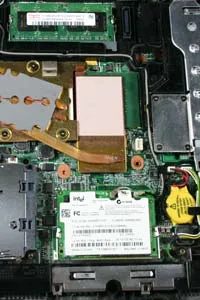
The motherboard isn’t just a board. It’s the literal foundation. This large printed circuit board acts as the central nervous system, providing the sockets and connections that allow disparate components to talk to one another. Shape matters here. A laptop motherboard looks nothing like a desktop counterpart. Size and layout are dictated by space constraints.
At the center of it all sits the central processing unit (CPU ). Think of it as the brain. This microprocessor contains millions of tiny transistors. Its job is simple but heavy: perform the calculations that make software work. The transistors manipulate data. The CPU makes decisions. Without it, nothing happens.
Memory is equally critical. Computers rely on two main types: read-only memory (ROM ) and random access memory (RAM ). ROM is static. You can read from it, but you can’t write new data to it. RAM is different. It allows both reading and writing. Why does this distinction matter? Because without memory, every calculation would be stateless. There’s no way to preserve information from one moment to the next. Every process would start on a clean slate. You can’t build complex programs on a clean slate.
Upgradability varies wildly. Many desktop PCs let you plug additional RAM chips into motherboard sockets. You open the case. You install the memory. You’re done. Other systems are sealed. You aren’t meant to open them. You’re stuck with what came in the box.
Then there is the Basic Input/Output System (BIOS ). This is a specific type of ROM that works closely with the CPU. If the CPU is the brain, the BIOS is the spine. It handles the interaction between running software and hardware components. It bridges the gap.
The motherboard, CPU, ROM, RAM, and BIOS do most of the heavy lifting. They allocate resources to applications. They ensure smooth operation. They accept input from keyboards, mice, and other accessories. They manage the flow.
But there’s more to the story.
Offloading the Heavy Graphics
Graphics cards often get lumped into the “guts” category. They deserve their own spotlight. Many of these cards come with their own dedicated microprocessors: the graphics processing unit (GPU ).
Why do we need a separate processor for graphics? Because generating rich, complex visuals is computationally expensive. The GPU handles some of that processing power. It takes the load off the CPU. This separation allows the main processor to focus on game logic, physics, or application code while the GPU renders what you see on screen.
It’s a division of labor. The CPU thinks. The GPU draws. The motherboard connects them. The memory holds the data. The BIOS boots it all up.
Other components are waiting in the wings. Storage drives. Power supplies. Cooling systems. Let’s get into the guts of the computer in the next section.
Powering the Machine
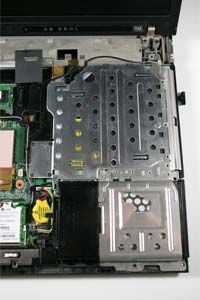
Plugging your computer into the wall does more than just keep the lights on. It sends electricity through a cord into a shielded box housing a power supply. Inside, a transformer steps that raw voltage down to levels each component can actually handle. If you are on a laptop, a chunk of that juice goes straight to the battery, charging it up for when you pull the plug. Then you are running on stored energy.
Even when the system is off, a tiny CMOS battery stays awake. It keeps the complementary metal oxide semiconductor chip alive, preserving your hardware settings and keeping the clock accurate. You know this because your time never drifts when you boot up weeks later.
Where Data Lives
Drives are the storage engines. The workhorse is the hard drive. Traditional models spin thin platters, using magnetic fields to hold your files. Modern machines often swap these for solid state drives. No moving parts. Just flash memory. Both let you install apps and save documents directly to the machine.
Remember floppy disk drives? Those are gone. So are most CD-ROM and DVD-ROM drives. They used to be the standard for loading software and media, but optical storage has largely vanished from the modern build.
Connectivity and Output
Modems bridge the gap between your PC and other systems. They are closely tied to wireless cards, which act as radio transceivers. These cards send and receive data over specific radio frequencies, letting you jump on Wi-Fi without a cable.
Sound and graphics cards handle the sensory output. One plays audio. The other displays images. They are not interchangeable. A graphics card’s specs dictate which software formats it can decode or render. Not all cards support the same codecs. Pick the wrong one, and your media player might stutter.
The Heat Problem and How We Fix It
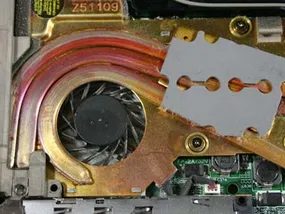
Inside the case, the battle against entropy is constant. Cooling systems are the first line of defense, usually consisting of heat sinks and fans. Without them, overheating isn’t just an inconvenience; it’s a systemic failure waiting to happen. Performance degrades first. Then, the system crashes.
Heat sinks are passive metal structures designed to absorb thermal energy and draw it away from critical components like the CPU. Fans provide the active mechanism to exhaust that trapped heat into the room. It’s a simple exchange: take the heat, move it out.
For high-performance builds, air cooling isn’t always enough. Some systems opt for advanced liquid-cooling systems. A water-cooling solution uses tubes of flowing coolant to absorb heat more efficiently than air, moving it away from sensitive parts before dumping it into a radiator elsewhere in the chassis.
That’s the anatomy. You now have a map of the major elements inside a typical computer. You don’t need to open the box and stare at the circuitry to understand what’s happening inside. The mystery is gone.
Now comes the tension: will it still work once we put it back together?
Related Topics
If you want to dig deeper into the architecture that powers your daily digital life, these areas are worth exploring:
- Hardware Fundamentals : How PCs Work, How to Build a Computer, How Motherboards Work, and How PC Power Supplies Work.
- Core Components : How Microprocessors Work, How Computer Memory Works, How Graphics Cards Work, and How Hard Disks Work.
- Interfaces & Controllers : How AGP Works, How IDE Controllers Work, How USB Works, and How Sound Cards Work.
- System Software : How BIOS Works and How Operating Systems Work.
Sources
- “The PC Guide.” April 17, 2001. (Retrieved Sept. 9, 2008) http://www.pcguide.com/
- “PC Tech Guide.” (Retrieved Sept. 10, 2008) http://www.pctechguide.com/
- Rosenthal, Morris. “Building a Computer – An Illustrated Step by Step Guide.” 2008. (Retrieved Sept. 10, 2008) http://www.daileyint.com/build/
- White, Ron. “How Computers Work.” QUE Corporation. Sept. 1999.