Dead batteries are annoying. Losing the phone too? That is a disaster.
Or it is if you think you are helpless.
Most people assume the app requires power. They are wrong. Apple fixed this a long time ago. Your phone is not actually dead in the eyes of the Find My network. Not for hours, anyway.
The technology that actually matters
iOS 15 changed the game. Your iPhone stays visible. It sends a low-power Bluetooth scream into the void. Nearby Apple devices—strangers’ phones, passing AirTags—they pick up the signal. They relay it. It all happens in the background. No one knows it’s happening.
It’s magic, really. But also hardware.
If you have an iPhone 10 or newer, you’re likely safe. Wait, there are exceptions. The iPhone SE 2020? The 2022 SE? The new 16E or 17E? Those lack the ultra-wideband chip. They can’t play the game. For the rest? The battery dies. The location still updates.
Apple separates the app from the network. That’s a key distinction. Find My is the interface. Find My Network is the swarm of devices watching your back.
Is your phone actually findable?
You have to check. Go to Settings. Tap your name. Find My > Find My iPhone.
Is it on? Good.
Look below it. Find My Network must be on. Send Last Location must be on.
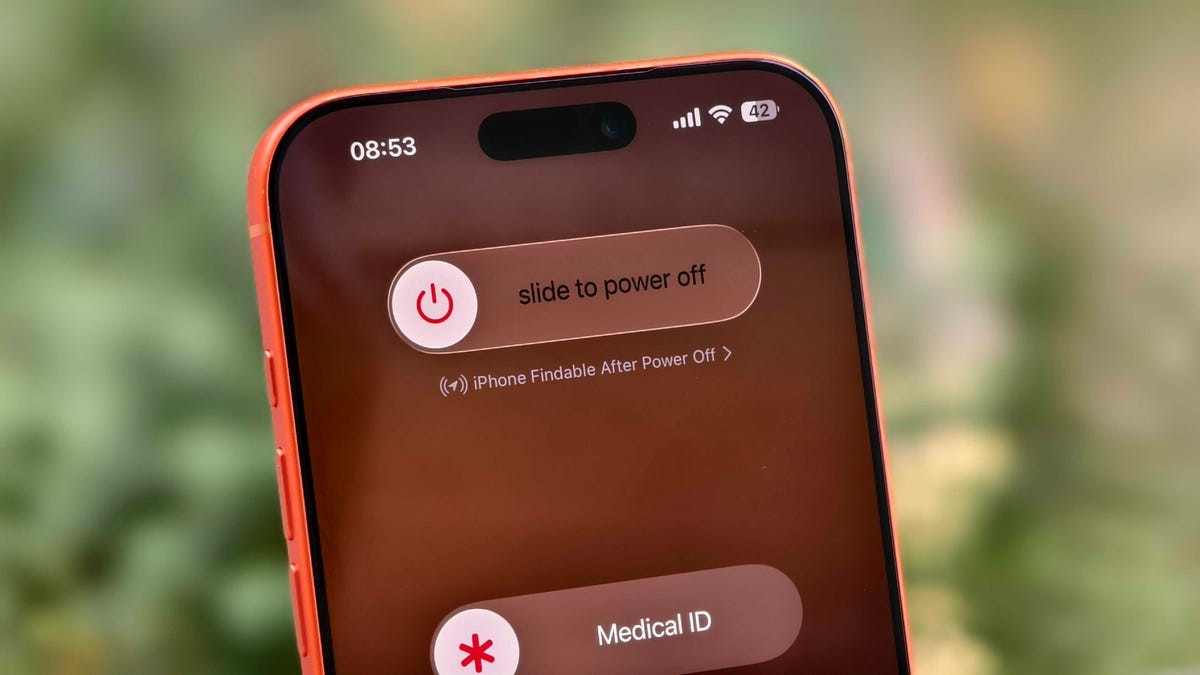
Check the power menu. Slide down to Control Center. Hold the power button. Do you see “iPhone Findable After Power Off”?
That text means you’re ready. If you don’t see it? You might have missed the setup step.
Here’s the catch. If your phone hasn’t sent its location in seven days? Bad luck. You’ll see “No location found.” The server doesn’t play favorites. It just knows where the phone was, not where it is if it’s been offline too long.
Hunting the ghost
Lost the phone? Don’t panic yet. Grab any Apple device. Watch. iPad. A friend’s iPhone you share locations with. It works.
Open the app. Look under Devices.
It will be there. Even if the screen is black. Even if it’s in a drawer.
Tap the name.
Two paths diverge.
If you think you left it on the couch? Hit Play Sound. Or get Directions. Let the hardware guide you home.
If you think a thief took it? Tap Activate under Mark As Lost.
This locks it down. Apple Pay is dead. A custom message screams to anyone who finds it: Please return this.
No Apple devices around? Log in to icloud.com/find via a browser.
It’s clunky. Two-factor authentication makes it a pain if your only phone is the missing one. But it works. The options are the same. Play sound. Mark as lost. Erase the device.
Don’t make it easy for thieves to disable your connection.
Go to Settings. Face ID & Passcode. Allow Access When Locked?
Turn off Control Center.
Why? Because thieves know how to cut data. They know how to hit Airplane Mode from the lock screen. Blocking Control Center stops them from flipping those switches quickly.
It’s an inconvenience for you. Checking battery percentage or opening flashlights is harder now. But traveling? It’s the smartest thing you can do.
Your phone is out there. Waiting to be heard.
Are you listening?