Losing an iPhone is common, but locating it—even with a dead battery—is now simpler than ever thanks to Apple’s built-in tools. The Find My feature, powered by the Find My Network, can pinpoint your phone’s location even after it’s powered off. This isn’t magic; it’s a clever system leveraging crowdsourced location data and security measures like Stolen Device Protection, which shields sensitive data like credit cards.
Understanding Find My vs. Find My Network
Many users confuse Find My (the app) with the Find My Network (the behind-the-scenes system). While the app is how you search, the Network is what actually finds your offline device. It’s the same tech that enables AirTags to update their location—even when lost in luggage. Both are essential for recovery.
Setting Up for Success: Enabling Find My
To ensure you can locate your iPhone even when powered off, you must enable the correct settings before it’s lost. Here’s how:
- Open Settings and tap your name.
- Navigate to Find My > Find My iPhone and ensure the toggle is on.
- Crucially, activate Find My Network and Send Last Location below. These ensure the phone transmits its location to iCloud even as the battery drains.
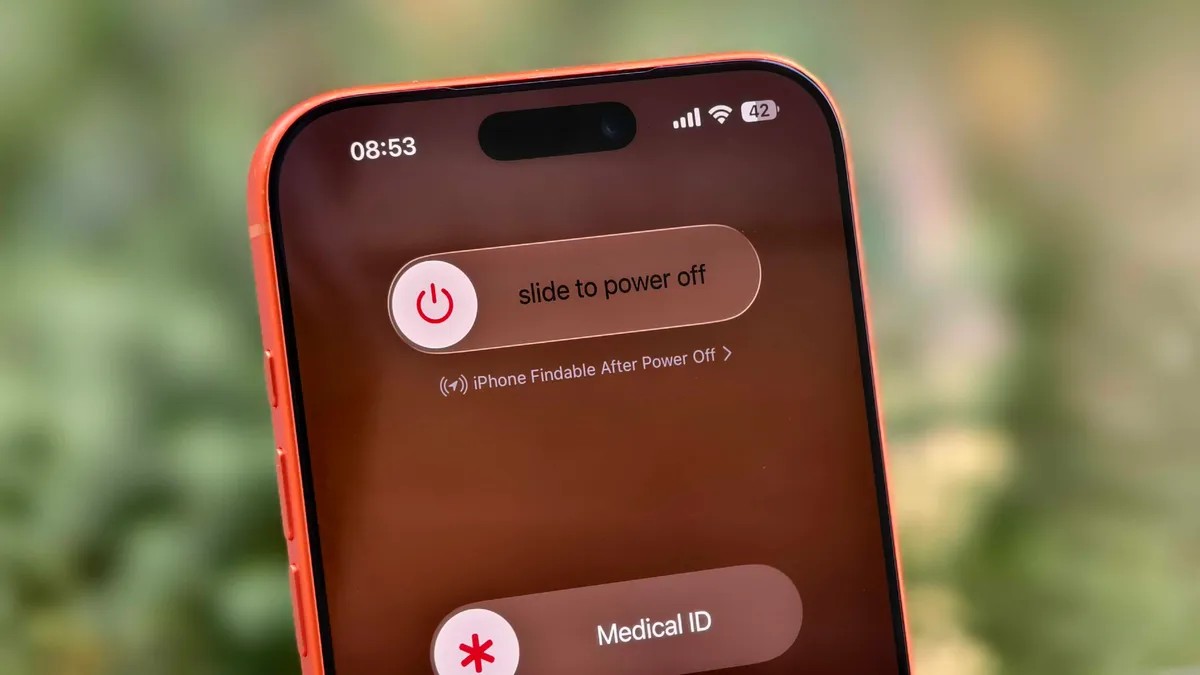
Newer iPhones (iPhone 11 and later, excluding some SE models) have ultra-wideband chips that enhance offline finding capabilities. You can verify if your phone is discoverable by checking for “iPhone Findable After Power Off” when initiating a shutdown.
Finding Your Lost iPhone: Step-by-Step
Once set up, locating your lost iPhone is straightforward.
Using Another Apple Device:
- Open the Find My app on an Apple Watch, iPad, or MacBook.
- Locate your iPhone in the Devices tab. Even if off, it should appear if Find My was enabled.
- Tap the device name for options: Play Sound (if nearby), Directions (to the last known location), or Activate (to lock the device and display a message if stolen).
Without Another Apple Device:
- Sign in to your Apple ID at icloud.com/find in a web browser.
- Navigate to the Devices list and use the same options as the app.
Important: If your iPhone hasn’t reported its location in the last seven days, you may see “No location found.” This can happen if location services were disabled.
Additional Security Measures
For travel, consider disabling Control Center access on the lock screen (Settings > Face ID & Passcode ). This prevents thieves from turning off data or activating Airplane mode, making recovery harder. While inconvenient for daily use, it adds another layer of protection in high-risk environments.
In conclusion: Apple’s Find My system is remarkably effective at locating lost iPhones, even when offline. Proper setup is key. By enabling the necessary features before a loss, you dramatically increase your chances of recovery, whether through crowdsourced location data or remote locking/erasing capabilities.