
Many new TVs don’t deliver their best picture quality straight out of the box. If you’ve recently purchased a TCL TV – or even if you’ve had one for a while – adjusting a few settings can drastically improve your viewing experience. These changes aim to bring the image closer to the creators’ original intent for movies and shows, and the process is straightforward.
No specialized equipment or knowledge is required. Simple adjustments, like switching picture modes or tweaking contrast, can yield significant results. You can’t harm your TV by experimenting with these settings, and reverting to the original configuration is always easy.
Navigating the Settings Menu
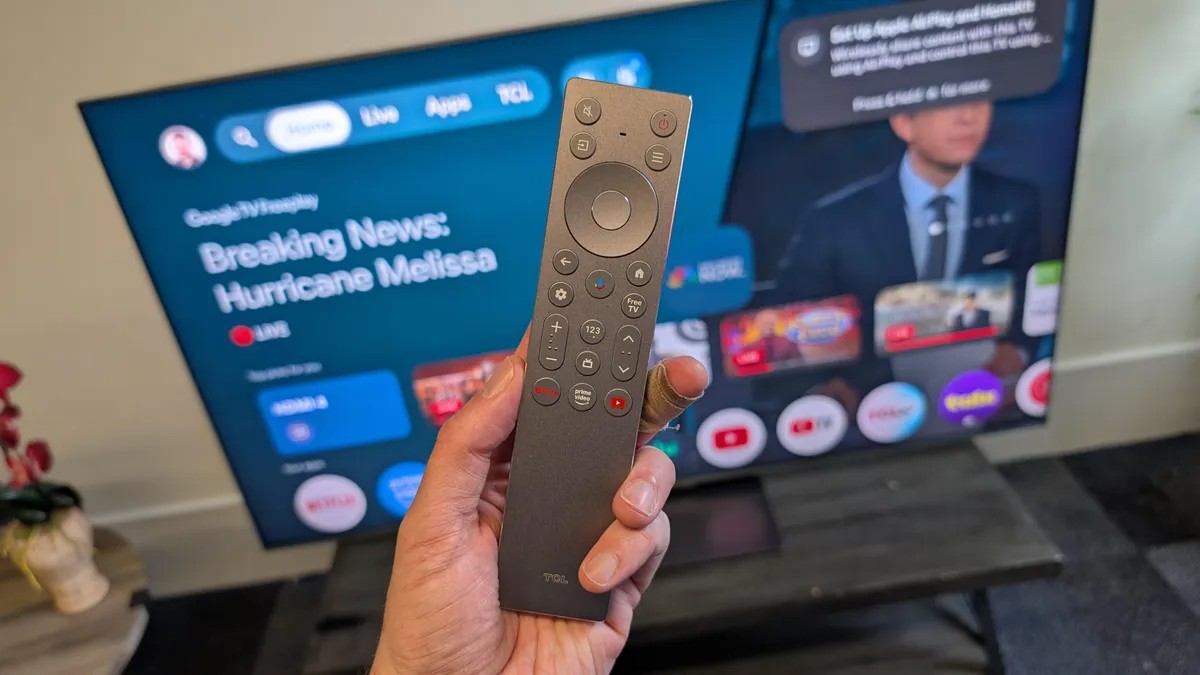
After initial setup (pairing the remote, Wi-Fi connection, data sharing preferences), you can begin refining the image. TCL TVs use different operating systems – Roku, Google TV, or proprietary interfaces – but all provide access to picture quality adjustments. Not every model includes all settings, but most offer the core options needed for improvement.
Choosing the Right Picture Mode
TCL TVs typically include preset modes like Standard, Vivid, Sports, Movie, and sometimes Filmmaker Mode. Filmmaker and Movie modes are generally the most accurate, reflecting the content creators’ vision.
Switching from Standard or Vivid to Movie or Filmmaker may initially appear “warm” or yellowish. This is because other modes often use cooler color temperatures. Give your eyes time to adjust, and the warmer setting will begin to look natural, while the other modes will seem overly blue. You can also fine-tune the color temperature manually if desired.
Recent reviews suggest Filmmaker Mode often provides a slight edge over Movie Mode, disabling excessive enhancements like sharpness and the “soap opera effect.” Some TCL TVs even feature automatic content recognition that switches to Filmmaker Mode when appropriate, though this isn’t always perfect.
Intelligent Mode: Use with Caution
Intelligent mode automatically adjusts settings based on content and ambient light. While convenient, it’s best to stick with a single, manually configured mode for consistency. Movie or Filmmaker will deliver reliable results without unpredictable shifts.
Some TVs apply picture settings differently to each input and internal apps, so verify that your changes carry over after adjusting. Look for a “apply all picture settings” feature if available.
Fine-Tuning the Image: Key Adjustments
Beyond picture modes, several settings allow further customization:
- Contrast: Adjusts the intensity of bright areas. Too high can wash out highlights, turning bright clouds into featureless white blobs.
- Brightness: Controls the darkness of shadows. Too low makes shadows invisible; too high washes out blacks. Some TVs separate brightness from black level adjustment.
- Color and Tint: Typically require minimal adjustment.
- Sharpness: Lower sharpness is often better. High sharpness adds artificial edge enhancement, increasing noise and masking detail. Avoid excessive digital noise reduction, as it can blur fine details.
Advanced Settings: For the Discerning Viewer
For those seeking further refinement:
- Gamma: Affects the brightness of mid-tones. Lower values brighten the image but can make it appear flat.
- Motion Clarity (MEMC): TCL’s motion compensation technology can create an unnatural “soap opera effect.” Disable this for movies and scripted TV shows.
- LED Motion Clear (BFI): Inserts black frames between video frames, sharpening motion without artificial smoothness. May darken the image slightly and cause flickering in some cases.
- Dynamic/Adaptive Settings: Avoid modes labeled “dynamic” or “adaptive,” as they can introduce inconsistent results. Adaptive brightness, which adjusts to ambient light, is an exception.
Final Recommendation: Disable adaptive settings and manually configure your TV for optimal picture quality. The goal is consistency, not constant adjustment.
Adjusting your TCL TV’s settings is a simple way to unlock a better viewing experience. By prioritizing accuracy and disabling unnecessary enhancements, you can enjoy content as the creators intended.