
Shopping on a smartphone isn’t just convenient anymore. It’s the default.
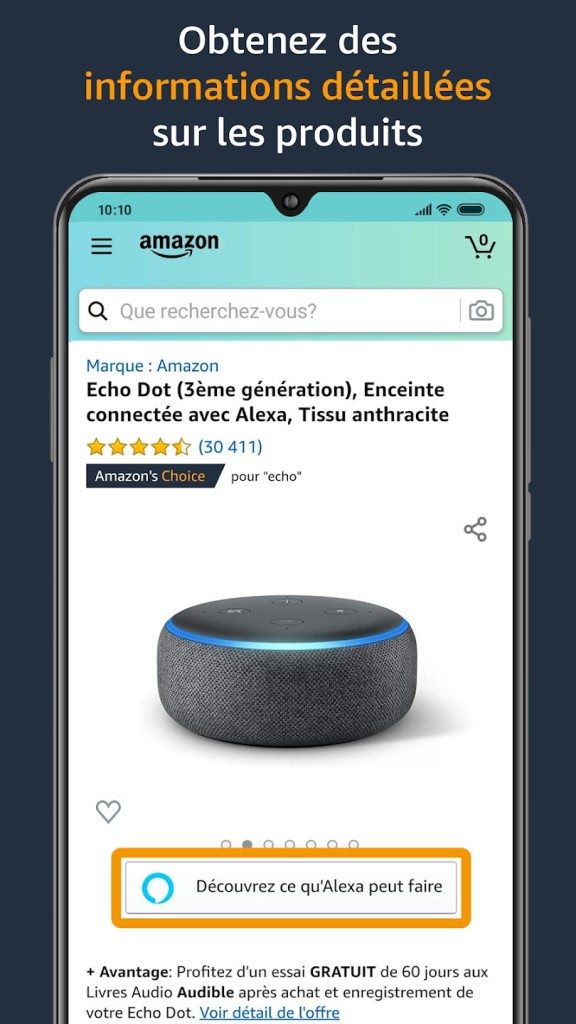
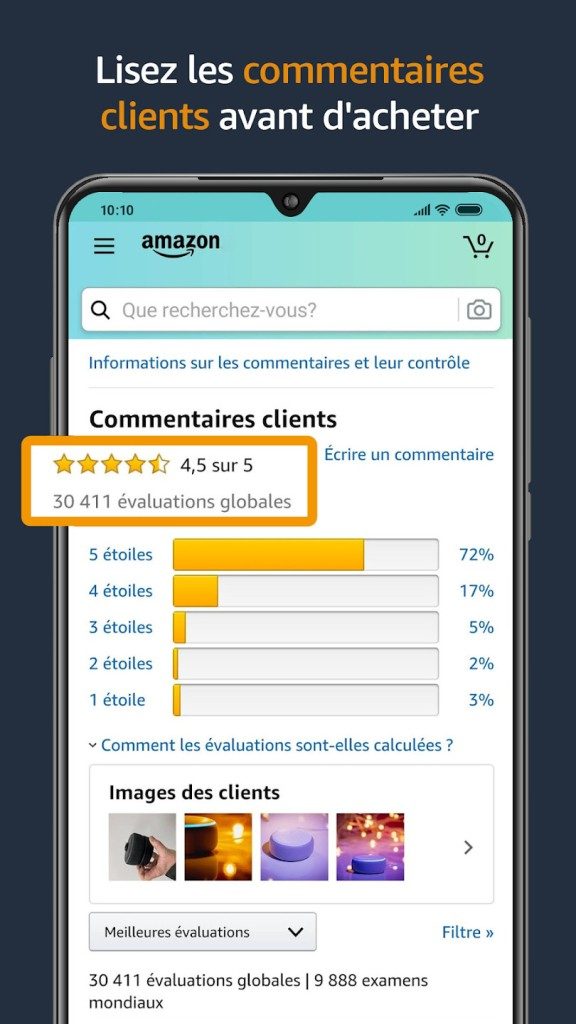
Amazon’s app leads the pack. It handles millions of products across roughly forty categories. If you need specific gear or random household items, the search engine filters make it easy. Multi-criteria sorting cuts through the noise. You see detailed product sheets. Real user reviews. Technical specs. You can even message sellers before hitting buy.
Prices tend to be competitive. Delivery estimates are clear. Sometimes, you get next-day delivery.
Need help? The help section explains how things work. Customer service is accessible via instant messaging.
But let’s look closer at how this actually works under the hood.
Installation and Cross-Platform Access
The app is free. It lives on your phone.
For Android users, it’s in the Google Play Store. iOS users grab it from the App Store. Installation takes seconds. You log in. Or you create an account. Then you’re in.
There is no standalone desktop app for Windows, macOS, or Linux.
This isn’t a bug. It’s a strategy. Amazon expects you to use the browser for desktop. The web interface mirrors the app’s core functions. Search. Checkout. Returns. Support.
No specialized “student” edition exists. No discount tiers in the software itself. Just the main app, updated regularly.
Compatibility and Version Management
Updates are frequent. They patch security holes. They speed up navigation. They add features.
Keep the app updated. Automatic updates usually handle this. Check your settings if you disable auto-updates.
Older operating systems lag behind.
Ancient versions of Android or iOS might not support the latest app release. Features break. Security risks rise. Update your OS if you can.
What about older devices?
You can’t easily downgrade the app. Official stores only offer the latest version. Alternative app archives exist. Don’t use them. They’re risky. Security risks. Compliance issues. Stick to official sources.
The app adapts to screens. Smartphones. Tablets. It optimizes layout for each. Notifications work. Geolocation tailors offers. Mobile payments are secure.
The web version runs on any modern browser. Chrome. Firefox. Safari. Edge. It works on Windows. Mac. Linux.
Universal access. One ecosystem.
Why does Amazon prioritize mobile so heavily? Because that’s where the attention is. The friction is low. The impulse is high.
The desktop site remains a fallback. A command center for complex tasks. But the phone? That’s the store.
Is it perfect? No. But it’s ubiquitous. And in e-commerce, ubiquity wins.

The Amazon Shopping app isn’t just a catalog. It’s a logistics engine wrapped in a sleek interface.
You search. Thousands of results appear. You filter by price, newness, customer reviews, or delivery speed. The product pages are dense with data. Technical specs. Verified purchase reviews. Real-time updates.
Then you buy.
Tracking kicks in immediately. Notifications fire at every stage: preparation, shipping, delivery. If the item doesn’t fit or breaks, returns start inside the app. No phone calls needed initially.
Customer support is baked in. Instant messaging. Calls. Quick links to FAQs. Resolution happens fast.
There’s also barcode scanning. Wishlist creation. Voice shopping via integrated assistants. Payments are encrypted. Secure.
Why Security Matters in Mobile Commerce
Security isn’t an afterthought. It’s foundational.
Two-factor authentication (2FA) is standard. Your personal data stays protected. Financial details are safe. You can audit transaction history anytime. Subscriptions like Amazon Prime are managed directly in-app.
Privacy relies on regular updates. Continuous encryption of communications. The system works because it’s constantly patched against new threats.
You shop with confidence. Not because the app promises safety. But because the infrastructure enforces it.
How Amazon Compares to Competitors
The market is crowded. Cdiscount. eBay. Many others.
Amazon stands out for three reasons: international coverage. Seller diversity. Logistical reliability.
Delivery speed is a killer feature. One-day shipping via Amazon Prime is common. Most competitors can’t match that consistently.
The interface is simpler. Search tools are smarter. After-sales support is more robust.
It works for novices. And power users.
Personalized suggestions. Shopping lists. Price tracking for saved items. The app adapts to your behavior.
Professional buyers get Amazon Business. Bulk purchasing. Dedicated accounts. Invoice access. Mostly via the web version, but the ecosystem connects.
Where to Get Help and Learn More
Support is a major strategic pillar.
Online help covers:
– Onboarding tutorials
– Technical troubleshooting
– Search optimization tips
– Return procedures
Interactive guides. A support center. Autonomous management is possible.
If you’re stuck, experienced advisors are available.
There are free online training resources to deepen your understanding of the Amazon universe. But here’s the catch: no official certification exists for the Shopping app itself.
It’s a tool. Not a course.
You learn by doing. By navigating. By solving small problems along the way.
That’s how the ecosystem works. You don’t need a certificate. You just need to know where the help button is. And when to press it.
The rest is just scrolling. And waiting for the delivery truck.
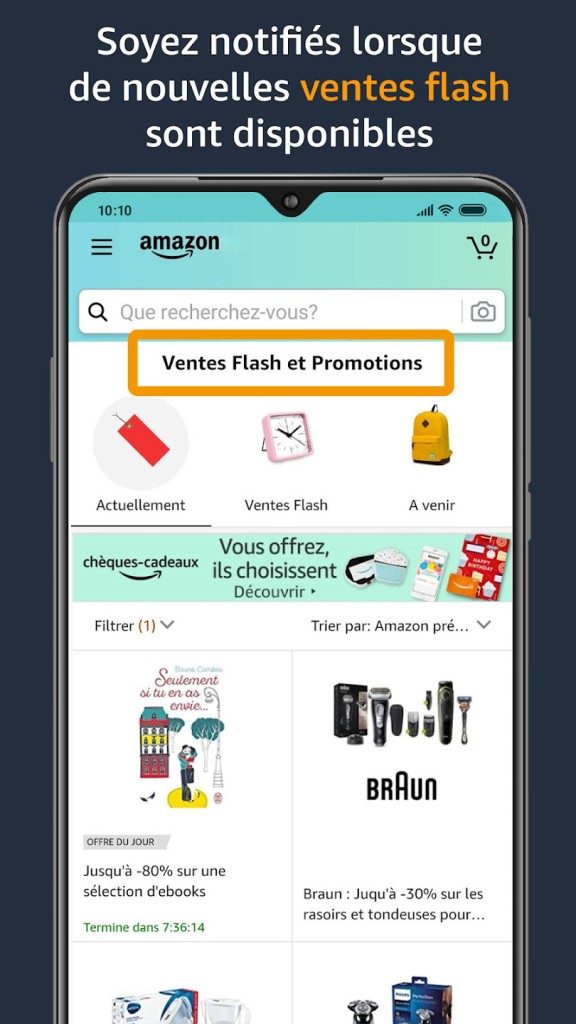
How to Install Amazon Shopping on Android or iOS
You don’t need a supercomputer to run the Amazon shopping app. The technical requirements are slim. It runs on standard mobile environments. Android and iOS devices handle it fine. Tablets work too. Even older hardware usually copes without lag. The app is lightweight by design. You get the same core experience on a phone as on a tablet.
Installation is straightforward. Go to the official app store. That means Google Play Store for Android. Apple App Store for iOS. Search for the app. Download it. It’s free. No hidden fees for the basic version.
Once installed, you have a choice. You can use the app directly. Or you can skip it entirely. The web version works just as well. Use any modern browser. Chrome. Safari. Firefox. No installation needed. Just log in. The functionality is nearly identical. You access the same catalog. You view the same product details.
Why You Need an Account (and When You Don’t)
Here’s the catch. You can browse without logging in. Look at products. Read descriptions. Check prices. That part is open. Anyone can do it.
But you can’t buy anything. Not without an account. Checkout requires authentication. You need an Amazon account to finalize purchases. The account tracks your order history. It manages your saved lists. It handles your payment methods.
If you skip login, you’re just window shopping. For actual transactions, you must sign in. This applies to both the app and the website. There’s no workaround. The system requires identity verification for security.
Security and Privacy Controls
The app uses encryption. HTTPS and TLS protocols protect your data in transit. Your credit card info doesn’t travel in plain text. It’s shielded. Amazon also supports two-factor authentication. Enable it. It adds a layer of defense. Prevents unauthorized access even if your password leaks.
Permissions matter. The app asks for specific access. It wants your camera. Why? To scan barcodes. Price comparisons. Product lookups. You can deny this. But it’s useful.
Location services are optional. The app uses GPS for delivery estimates. Local warehouse availability. You can turn it off. The app still works. Just with less personalized logistics data.
Notifications are enabled by default. Track orders. Deal alerts. You can tweak these in settings. Android and iOS both let you control push alerts granularly.
Accessibility and System Integration
Amazon didn’t ignore accessibility. The app respects native OS features. If you use screen readers on iOS or TalkBack on Android, it works. Text scaling is supported. Contrast modes are respected. Navigation remains logical.
This isn’t an afterthought. It’s built into the framework. Users with visual or motor impairments get standard tools. No custom quirks to learn. Just the usual accessibility suite you already know.
What You’re Actually Paying For
The app itself is free. But the ecosystem isn’t. You pay for products. Physical goods. Digital items. Books. Music. Software. Optional subscriptions like Prime add value. Shipping perks. Stream access. These are separate costs.
The app is a gateway. A tool. Not the product itself. You’re buying things through it. Not the app itself.
Which Device Should You Use?
Smartphones are the primary use case. On-the-go browsing. Quick purchases. Impulse buys.
Tablets offer a better view. Larger screens. Easier navigation. More comfortable for detailed product research.
Desktop browsers remain viable. If you’re at a desk, the web version might be faster. Less resource-intensive than keeping an app alive in the background.
There’s no “best” platform. Only what fits your workflow.
Why Internet Connection is Non-Negotiable
You need data. Or Wi-Fi. The app doesn’t cache everything. You can’t browse offline. Product listings change. Prices fluctuate. Inventory updates in real-time.
Without a connection, the app is useless. For orders. For tracking. For browsing. Internet is mandatory. Not optional.
If you’re on a spotty network, expect lag. Or timeouts. The app relies on constant communication with Amazon servers.
Support and Troubleshooting
When things break, where do you go? Online help. FAQ sections. Customer service messaging. No phone numbers prominently

Why Linux Mint 22 Will Feel Like Home
If you just want a computer that works, you don’t need to reinvent the wheel. Linux Mint 22, codenamed “Wilma,” is arriving with the same familiar desktop environment you already know. It’s based on Ubuntu 24.04 LTS. That means long-term support. That means stability. The interface hasn’t changed much. Cinnamon, MATE, and Xfce editions all look and feel exactly like their predecessors. You click the start menu. You open a terminal. You get stuff done.
But don’t mistake familiarity for stagnation. Under the hood, the upgrade is significant. The core system has shifted to a newer kernel. This isn’t just a number bump. It’s about hardware support. Specifically, newer processors and graphics cards.
If you are still running Mint 21 on a laptop bought in 2022, you’re likely missing out on power management improvements.
The shift to Ubuntu 24.04 brings a newer version of the Linux kernel. Version 6.5 or higher depending on the specific update channel. This matters for two reasons. First, better power efficiency. Your laptop battery might last a few hours longer. Second, broader hardware compatibility. If you have a recent AMD GPU or a new Intel Wi-Fi chip, Mint 22 will likely recognize it out of the box. Older versions of Mint might struggle or require manual driver installation.
The Hidden Shift: Snap vs. Flatpak
Here is where the debate gets heated. Ubuntu has pushed Snap packages hard. Mint has always resisted. They still prefer Flatpak. This isn’t just a technical preference. It’s a philosophy. Snap packages are containerized. They include their own libraries. They take up more disk space. They update automatically in the background. Some users love this. Others hate the bloat.
Mint keeps Flatpak as the default for third-party applications. This means you get modern software without sacrificing disk space or control. But there’s a catch. The system utilities still rely on traditional .deb packages. This hybrid approach can be confusing. You might try to install a tool via Snap for compatibility, only to find Mint’s software manager ignores it.
The key takeaway is this: stick to the Software Manager. It handles Flatpak bundles seamlessly. Avoid the terminal unless you know what you’re doing. The default applications haven’t changed much. Firefox is still the browser. Thunderbird for email. LibreOffice for docs. Nothing revolutionary. Just reliable.
Performance on Older Hardware
You might be wondering if this upgrade is worth it for an older machine. The answer depends on your edition. The Cinnamon edition is the heaviest. It uses more RAM and CPU cycles. If you have 4GB of RAM or less, stick to MATE or Xfce. They are lighter. They breathe easier.
Benchmarking shows minimal difference in boot times between Mint 21 and 22 on SSDs. The real gain is in daily responsiveness. The newer kernel handles I/O operations slightly better. File copying feels faster. Opening large folders doesn’t stutter as much. It’s subtle. You might not notice it on a fast PC. You’ll definitely notice it on a 10-year-old laptop.
Upgrade if your hardware supports it. Skip if you’re clinging to a