
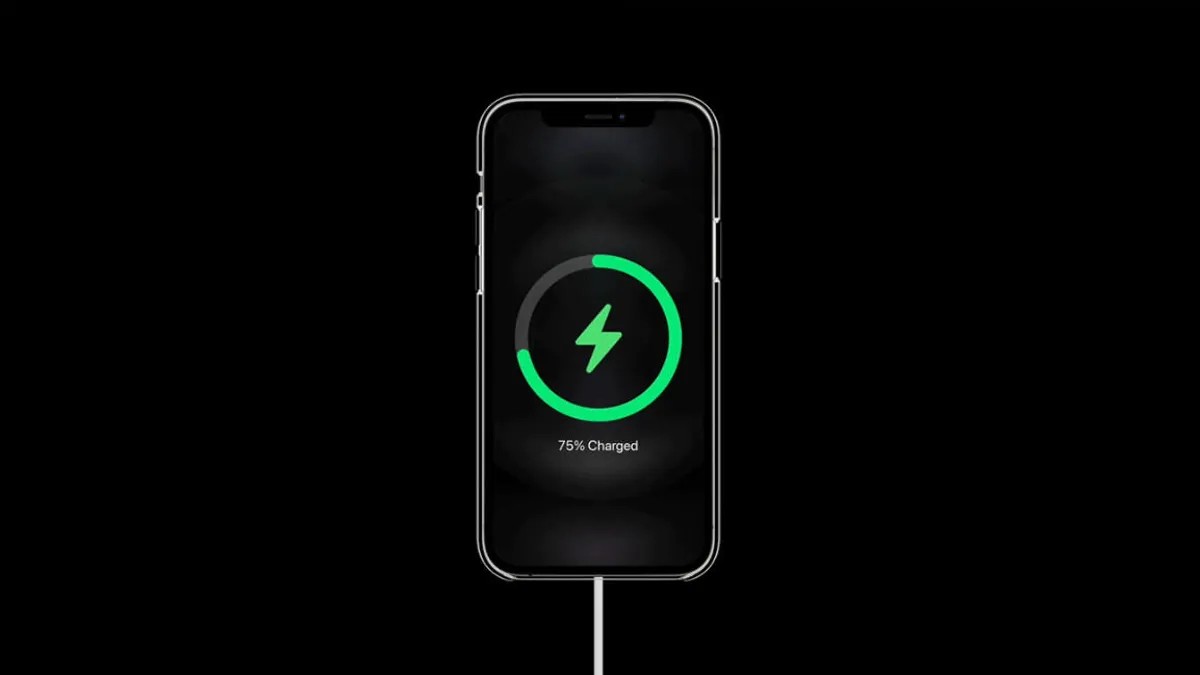
Slow iPhone charging is a common frustration. Whether you’re dealing with battery drain after an iOS update or simply need a quick power boost, there are several reliable ways to dramatically speed up the process. This guide cuts through the tech jargon and provides practical solutions, so you can get back to your day without being tethered to an outlet.
1. Upgrade Your Charger: The Fastest Route
The quickest way to charge is with a fast charger – a 20-watt (or higher) power adapter paired with a USB-C to Lightning (or USB-C to USB-C for newer iPhones) cable. iPhones 8 and later can reach approximately 50% charge in 30 minutes with fast charging, and a full charge in around an hour. Apple no longer includes these adapters, but they are available from Apple and Amazon.
Important note: iOS 26 now displays a “Slow Charger” warning on your lock screen if you’re using an underpowered adapter or an old cable.
2. Wireless Charging: MagSafe & Qi2 for Speed
Wireless charging, especially with Apple’s MagSafe or a Qi2-certified charger, offers the second-fastest option.
However: Not all wireless chargers are created equal. Older Qi1 chargers deliver only 7.5 watts, significantly slower than the 15-watt MagSafe/Qi2 standard. Non-certified magnetic chargers also fall back to the slower 7.5-watt rate.
3. Avoid Laptop Charging: It’s Inefficient
Your computer’s USB port, even USB-C, cannot deliver the same power as a wall outlet. Charging via a laptop will always be slower, especially if the USB port is old or incompatible with your cable.
4. Minimize Usage During Charging
Using your iPhone while charging drastically slows down the process. Streaming videos or playing games consumes power faster than it can be replenished. If speed is critical, leave the device untouched.
5. Turn Off Your iPhone for Maximum Speed
Even with the screen off, your iPhone still consumes background power. The fastest charge occurs when the device is completely powered down. Plugging it in first, then turning it off is the most effective method.
6. Airplane Mode: A Quick Alternative
If you can’t fully power down, enable Airplane Mode. This disables wireless transmission (cellular, Wi-Fi, Bluetooth), reducing power consumption and accelerating charging.
7. Cool Down for Optimal Charging
Extreme temperatures can trigger iOS to halt charging to prevent battery damage. Moving your iPhone to a cooler environment ensures consistent charging. Check Settings > Battery for past overheating stoppages.
8. Optimize Settings for Faster Charging
Several built-in settings can further enhance charging speed:
– Low Power Mode: Reduces background activity and brightness.
– Dark Mode: While debate exists, it can marginally improve efficiency.
– Lower Screen Brightness: Displays consume significant power.
9. Disable Optimized Battery Charging (Temporarily)
Apple’s Optimized Battery Charging prolongs battery life by slowing down charging during extended periods (like overnight). For immediate speed, disable this feature in Settings > Battery > Battery Health.
10. Consider a Battery Replacement
If your iPhone’s battery health is severely degraded (check Settings > Battery ), charging will be inefficient. A new battery significantly improves overall performance and charge retention. Apple’s battery replacement service costs approximately $99 for iPhone 15 models, depending on coverage.
Conclusion: Slow charging is often a fixable problem. By upgrading your charger, optimizing settings, and avoiding energy-intensive usage during charging, you can dramatically improve your iPhone’s power-up speed. If persistent issues remain, a battery replacement may be the most effective solution.