



AOMEI Partition Assistant handles the messy side of Windows storage. It lets you split, merge, and shrink disk partitions without touching your files. For most home users, it is the fastest way to fix a “not enough disk space” error or prepare a drive for a new operating system.
This utility works on Windows XP through Windows 11. It supports both 32-bit and 64-bit systems. You can use it on a decade-old laptop or a brand-new desktop. The interface is simple, which helps if you are not comfortable opening a command prompt to manage drives.
What does the free Standard Edition actually do?
The free version covers the basics that most people need. You can create new partitions, delete old ones, and resize existing volumes. It handles this without wiping your data.
- Creation and deletion: Add or remove partitions safely.
- Resizing: Expand or shrink partition sizes.
- Formatting: Quick or full format for new or reused drives.
- Merging and splitting: Combine small partitions or break up large ones.
- Integrity checks: Verify the health of a volume.
The tool also copies partitions and clones non-system drives. This is useful when you swap hard drives. One key feature is converting FAT32 to NTFS without formatting. This saves you from losing data when you upgrade your hardware or operating system.
Which features require a paid license?
The free version has limits. If you need to clone your entire system drive, you will need the paid version. This includes migrating your operating system to an SSD without reinstalling Windows. It also unlocks the ability to convert between primary and logical partitions.
If your main goal is just to free up space on your C: drive or organize an external USB stick, the free version is enough. For system-level migrations, budget for the paid tier.
AOMEI focuses on reliability through regular updates. These patches fix bugs and add support for new hardware.
How to download and install AOMEI Partition Assistant
Download the installer from a secure source. The software is Windows-only. There is no native version for macOS, Linux, Android, or iOS. However, partitions you create on Windows will be readable by other operating systems if you plug the drive into them.
Installation is straightforward. Run the executable, and follow the setup wizard. You do not need technical skills to get started. That said, partition manipulation is delicate. Back up important data before you start. Even with built-in safety measures, a power failure during a resize operation can cause issues.
Does AOMEI Partition Assistant work on all PC types?
Yes. The Standard Edition requires very little. It runs on systems with 512 MB of RAM and needs about 100 MB of free disk space. It recognizes SATA, SCSI, IDE, SSD, and USB drives natively.
Compatibility is not an issue for UEFI or traditional BIOS systems. Whether you have a recent gaming PC or an older office laptop, the tool detects your hardware correctly. You can force updates through the built-in management menu. These updates do not mess with your existing settings or partition layouts.
Why does this matter? Because disk management is rarely a one-time task. As you add drives or replace hardware, you need a tool that keeps working across different Windows versions. AOMEI Partition Assistant stays consistent in that regard.
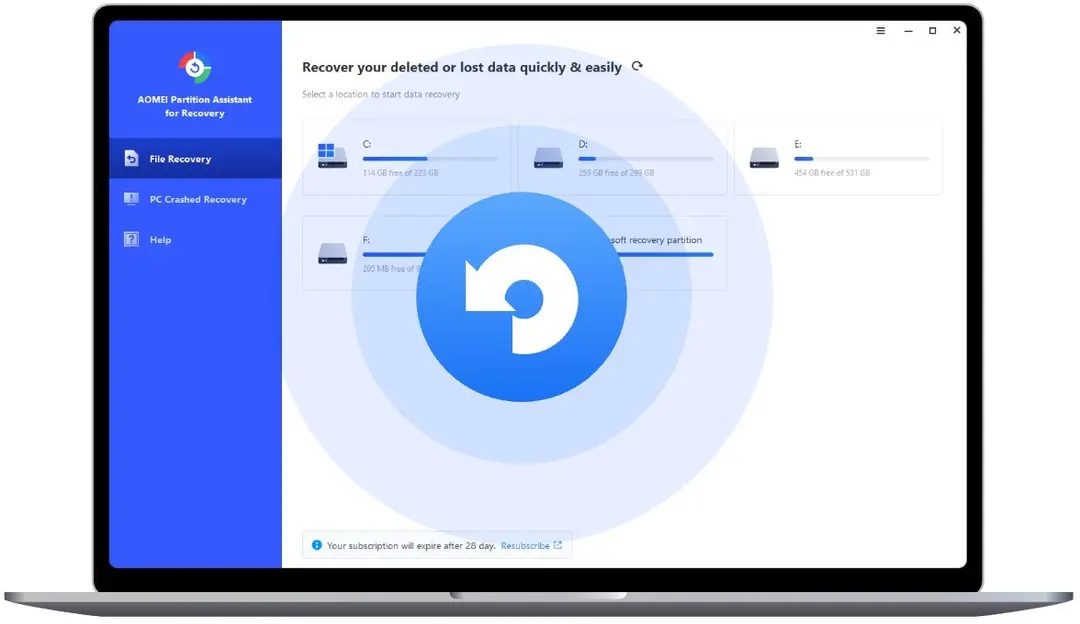

Which edition of AOMEI Partition Assistant fits your needs?
The free Standard Edition handles basic partition management just fine. If you are only resizing drives or creating new partitions, stick with that. It does not cost anything, and it saves you from bloated software you will never use.
But if you need to do more, the paid tiers step in. Professional, Server, Unlimited, and Technician editions unlock features that the free version locks away. We are talking about full system disk cloning, converting primary partitions to logical ones without losing data, or migrating your entire operating system to a new SSD or NVMe drive.
Alignment of partitions for modern disk optimization is another premium feature. So is recovering deleted partitions. If you accidentally wiped your D: drive and did not back up, this is your lifeline.
The pricing model depends heavily on the edition and license duration. The Professional version for individual users comes in two flavors: a perpetual license or an annual subscription. Students and higher education institutions often snag promotions here. For businesses, the Server, Unlimited, and Technician formulas offer broader exploitation rights. You also get priority hotline access and lifetime updates.
Prices change often. Check the official AOMEI site or authorized distributors like Futura before you buy. You will likely find better deals than the standard list price.
Where to find older versions of the partition manager
Why would you want an old version? Sometimes your hardware is ancient. Or your system environment is specific in a way that new software simply does not support. Legacy systems do not play nice with the latest updates.
Futura keeps archives of previous editions available, legally and periodically. This is useful for maintenance or restoration work on older machines. If you are managing a fleet of aging PCs, having the right version of AOMEI Partition Assistant for that specific era of hardware is a practical necessity.
How does AOMEI compare to EaseUS, GParted, and MiniTool?
You are not alone in the market. EaseUS Partition Master, GParted, and MiniTool Partition Wizard are the main competitors. They all manage partitions, but they do it differently.
AOMEI leans into a user-friendly interface. It includes detailed guides right inside the software. The technical support is reactive, backed by documentation, FAQs, and tutorials. There is also a community on forums and social networks. That matters when you hit a weird error at 2 AM.
EaseUS and MiniTool focus heavily on functionality and speed. GParted is the free, open-source alternative, popular among Linux users and those who do not want to pay for a license. But GParted is not as polished for Windows-native workflows.
The comparison criteria boil down to a few things:
– Interface ergonomics
– OS coverage
– Feature richness
– Security level
– Operation speed
– License cost
AOMEI wins on approachability. It does not assume you are a sysadmin. It walks you through complex tasks like multi-OS boot management or corrupted partition recovery.
Does AOMEI Partition Assistant have official training or certification?
No. There is no official certification path. But you do not need one to master the tool. Tech websites, webinars, and articles cover the advanced topics. Think about managing multi-OS boot sequences or recovering corrupted partitions. These resources guide you from basic steps to expert-level tweaks.
This ecosystem of learning materials helps solidify AOMEI’s reputation in the Windows disk utility landscape. Whether you are a home user, an occasional IT maintenance worker, or a professional handling intensive server environments, the software scales with your needs.
Frequent updates and broad compatibility keep it relevant. Downloading from a reliable source like Futura ensures you get a secure, maintained version. It handles hard drives, SSDs, and old or new partitions on Windows PC systems without friction.
The tool is solid. It solves partition problems effectively. Just pick the edition that matches your risk tolerance and hardware setup, and you will be fine.
System requirements and what the software actually needs from your hardware
AOMEI Partition Assistant doesn’t care if your PC is a beast or a tired office machine from 2012. The minimum spec is shockingly low. You need a processor that understands x86 instructions, at least 512 MB of RAM, and 100 MB of free disk space. That’s it. Most people have ten times that.
The catch isn’t the hardware. It’s permissions. To touch the actual structure of your drives, the tool runs with administrator privileges. This is non-negotiable. If you try to resize or format a partition without admin rights, it simply won’t work. Treat this like any other system-level utility: you are handing it the keys to the building. Be careful.
The software is a local install. It doesn’t phone home for every command. You don’t need an active internet connection to split a drive or clone a system disk. You only need the web when you want to download updates or read the documentation. If you’re in a restricted environment or offline, the core functionality remains fully accessible.
Which disk types, interfaces, and partition schemes are supported
This is where the specifics matter if you have a mixed environment. AOMEI handles both legacy and modern storage architectures.
- Partition Schemes: It fully supports MBR (Master Boot Record) for older BIOS systems and GPT (GUID Partition Table) for modern UEFI setups. You can convert between them where the hardware allows.
- File Systems: It manages NTFS, FAT32, FAT16, and exFAT natively. It also recognizes Ext2/Ext3/Ext4, though your ability to create, resize, or convert these Linux file systems depends on which edition you’re using.
- Storage Media: Anything Windows recognizes, it recognizes. This includes internal HDDs, SSDs, and NVMe drives. It also works with external drives, USB sticks, and memory cards.
- Interfaces: The tool works across SATA, IDE, SCSI, NVMe, and USB connections.
- RAID: It can interact with RAID volumes, provided Windows has already recognized them in Device Manager.
One notable feature for advanced users is the ability to generate a bootable WinPE media. This isn’t in every tier, but if you have the Professional, Server, Technician, or Unlimited license, you can create a bootable USB drive. This allows you to run AOMEI Partition Assistant completely outside of Windows. It’s essential if you’re migrating an OS, repairing a system partition, or doing anything that would be blocked while Windows is running on that same disk.
How to evaluate the right license for your specific partitioning needs
The “Free” version isn’t a toy, but it isn’t the full toolkit either. AOMEI Technology offers four paid tiers: Professional, Server, Unlimited, and Technician.
If you are a typical home user or small office worker, the Standard (free) edition likely covers your needs. You can create, delete, hide, and resize partitions. You can change drive letters and format drives.
Where it gets interesting is when you need to do things that touch the boot process or specific file system conversions. The paid editions unlock:
– Converting MBR to GPT on the system disk without losing data.
– Cloning system disks to different hardware.
– Advanced conversion between NTFS and FAT32/exFAT without data loss.
– Access to the bootable media creator.
The Technician edition is aimed at IT pros who need to support multiple machines, often with priority support. The Unlimited edition is for heavy users or labs who need high-frequency usage.
Don’t download the installer from a random third-party site. Getting the authentic installer from a reputable source like Futura ensures you aren’t bundling malware with a disk management tool. That’s a bad combination. The interface is multilingual, including French and English, so language barriers shouldn’t stop you. When in doubt, check the


